You’ve bought the rack, organized the cables, and now the centerpiece has arrived: the server. Whether it’s a brand-new Dell PowerEdge, an HP ProLiant, or a custom-built storage box, physically installing it is a high-stakes task. One wrong move can result in a dropped server, stripped screws, or damaged rails.
In this guide, we will walk you through the professional process of mounting your first server safely and correctly.
1. Prepare Your Workspace and Tools
Before you lift the server, make sure you have everything ready. You don’t want to be hunting for a screwdriver while balancing a 50-pound machine.
-
The Server Rail Kit: Most servers come with a specific pair of “Outer Rails” (for the rack) and “Inner Rails” (for the server).
-
Tools: A Phillips-head screwdriver (usually #2) and a cage nut tool (optional but highly recommended).
-
The “Buddy System”: If the server is 2U or larger, do not attempt to install it alone. These machines are deceptively heavy and awkward to balance.
2. Step 1: Attach the Inner Rails to the Server
Most modern servers use “tool-less” rails, but some still require screws.
-
Slide the inner rail onto the side of the server chassis.
-
Line up the keyholes on the rail with the mounting pegs on the server.
-
Slide the rail forward until it “clicks” into place. Repeat this for both sides.
3. Step 2: Install the Outer Rails into the Rack
Now, move to the server rack. You need to decide exactly which Rack Units (U) the server will occupy.
-
The Bottom-Up Rule: Always install your first (and heaviest) servers at the bottom of the rack to keep it stable.
-
Count the Holes: Ensure the left and right rails are at the exact same height. If one side is even one hole higher than the other, the server will jam or bend the rails.
-
Click or Bolt: Most modern rails “snap” into the square holes of the rack. Listen for the distinct click to ensure they are locked.
4. Step 3: The “Big Lift” (Mounting the Server)
This is the most critical step.
-
Align the Tracks: Lift the server and align the inner rails (on the server) with the outer rails (on the rack).
-
Slide it In: Slowly push the server into the rack. You will likely feel a “stop” about halfway in—this is a safety catch.
-
The Safety Release: Press the small plastic tabs on the sides of the rails to release the catch, then slide the server the rest of the way until it is flush with the rack.
5. Step 4: Secure the Front “Ears”
Once the server is fully seated, use the “thumb screws” on the front “ears” of the server to bolt it to the rack. This prevents the server from sliding forward if the rack is tilted or moved.
6. Step 5: Cable Dressing and Power-On
Now that the server is physically secure, it’s time for connectivity.
-
Use a Cable Management Arm (CMA): If your server came with a folding metal arm, install it now. This allows you to slide the server out for maintenance without unplugging any cables.
-
Power Redundancy: If your server has two power supplies (PSUs), plug them into different PDUs or power circuits.
-
Labeling: As mentioned in our cable management guide, label both ends of the power and data cables immediately.
7. Common Mistakes to Avoid
-
Ignoring the “Click”: If you don’t hear the rail click into the rack, it isn’t secure. A server can vibrate loose over time.
-
Crossthreading Screws: If your rack uses threaded holes, never force a screw. If it feels tight after half a turn, back it out and try again.
-
Blocking Airflow: Ensure no cables are dangling directly in front of the server’s intake or exhaust fans.
Installing a server is a rite of passage in the IT world. Doing it correctly ensures that your hardware is secure, easy to service, and properly cooled. Take your time, measure twice, and always ask for a second pair of hands for the heavy lifting.
Experience Tip: Before you push the server all the way in for the first time, slide it back and forth on the rails a few times. It should move smoothly. If it feels “gritty” or stuck, your rails aren’t perfectly parallel—adjust them now before the server is fully loaded with cables!
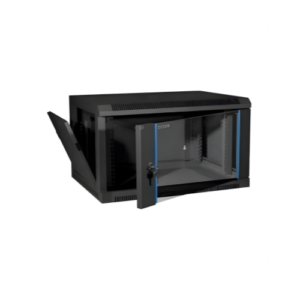
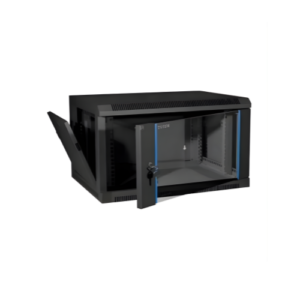
6U Server Rack