If the server is the “brain” of your rack, the patch panel and switch are the “nervous system.” Many beginners make the mistake of running long cables from the wall directly into their switch. This is a major error that leads to broken ports and tangled wires.
The professional way to do it is to use a Patch Panel as a middleman. In this guide, we will walk through the correct way to mount and connect these two vital components.
1. What is a Patch Panel (and Why Do You Need It?)
A patch panel is a simple piece of hardware with a row of ports on the front and “punch-down” blocks on the back. It doesn’t use power and doesn’t “process” data.
The Golden Rule: The cables coming out of your walls (the “permanent” cables) should never move. You punch them into the back of the patch panel once. You then use short, flexible patch cords to connect the front of the panel to your switch. This protects your expensive switch ports from the wear and tear of cables being pulled or moved.
2. Positioning: The “Sandwich” Method
For the cleanest look and easiest maintenance, the physical placement of these units matters. Experts recommend the Sandwich Method:
-
Top: Patch Panel 1
-
Middle: Network Switch
-
Bottom: Patch Panel 2
By placing the switch between two patch panels, you can use very short (6-inch or 1-foot) cables to connect them. This eliminates the need for long, dangling wires.
3. Step-by-Step Installation
Step A: Mounting the Hardware
-
Install your Cage Nuts into the rack rails.
-
Bolt the Patch Panel into the top slot.
-
Bolt the Network Switch directly below it.
-
Tip: If you have a deep switch, ensure it has enough clearance for the power cable at the back.
-
Step B: The “Punch Down” (Back of the Panel)
-
Strip the outer jacket of the Ethernet cable coming from the wall.
-
Untwist the pairs and lay them into the color-coded slots on the back of the patch panel (following either the T568A or T568B standard—just be consistent!).
-
Use a Punch Down Tool to press the wires into the slots. The tool will cut the excess wire automatically.
Step C: The “Patching” (Front of the Panel)
-
Take a short Patch Cable (Cat6 or Cat6a).
-
Plug one end into Port 1 of the Patch Panel.
-
Plug the other end into Port 1 of your Switch.
-
Repeat until all active lines are connected.
4. Cable Management Tips
-
Use Horizontal Managers: If you aren’t using the “Sandwich Method,” install a 1U horizontal cable manager between the panel and the switch to hide the slack.
-
Labeling is King: Use a label maker to mark the Patch Panel (e.g., “Office 101,” “CCTV 1”). Most switches allow you to name ports in their software, but a physical label is faster during a crisis.
-
Don’t Over-Tighten: When bundling cables behind the patch panel, use Velcro ties. Plastic zip ties can crush the copper pairs, slowing down your internet speed.
5. Testing the Connection
Once you’ve “patched” everything, use a Network Cable Tester.
-
Plug the master unit into the wall jack in the office.
-
Plug the remote unit into the corresponding port on the patch panel.
-
If all 8 lights blink in order, your punch-down was successful.
A properly set up patch panel and switch combo is the hallmark of a pro. It makes your rack look beautiful, but more importantly, it makes it modular. If you need to replace your switch in three years, you won’t have to re-wire the entire building; you just unplug the patch cords and slide the new switch in.
Experience Tip: Always buy “Shielded” patch panels if you are running cables near power lines. This prevents “EMI” (Electromagnetic Interference) from slowing down your data speeds.
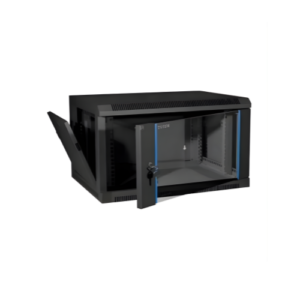
9U Server Rack