Imagine you have a rack with 10 servers. If you needed a separate monitor, keyboard, and mouse for every single one, your server room would be a mess of tangled wires and bulky hardware. Even worse, if a server crashes and loses its network connection, you can’t access it via remote desktop (like RDP or SSH).
This is where Rack Consoles and KVM Switches come in. These tools allow you to control dozens of servers using just one screen and one keyboard, even when the network is down.
1. What is a Rack Console?
A rack console (also called a “KVM Tray” or “Flip-up Monitor”) is a 1U device that looks like a laptop built into a drawer.
-
Design: It slides out of the rack and flips up to reveal a high-resolution screen, a full keyboard, and a touchpad.
-
Space Saving: When you’re done, you simply fold it down and slide it back. It takes up almost zero vertical space.
-
The Goal: It provides a “local” access point inside the server room so you can troubleshoot hardware directly at the rack.
2. What is a KVM Switch?
KVM stands for Keyboard, Video (Monitor), and Mouse. A KVM switch is a device that allows you to connect multiple servers to a single Rack Console.
-
How it Works: You plug each server into the KVM switch. Then, you connect the KVM switch to your Rack Console.
-
The Switcher: With the press of a button or a keyboard shortcut, you can “switch” the screen from Server A to Server B to Server C instantly.
3. Local KVM vs. KVM-over-IP
In 2026, the biggest decision you will make is whether you need “Local” or “Remote” access.
Local KVM
-
Usage: You must be physically standing in front of the rack to use it.
-
Pros: Highly secure (no internet access) and zero latency.
-
Best For: Small offices or high-security government facilities.
KVM-over-IP
-
Usage: It captures the video signal and sends it over the internet.
-
Pros: You can be in a different city and still see the “BIOS” or “Boot Screen” of your server as if you were standing in front of it.
-
Best For: Remote data centers and IT managers who work from home.
4. Why You Need a KVM (Even if You Use Remote Desktop)
Many beginners think, “I use Windows Remote Desktop or SSH, so I don’t need a KVM.” Here is why that’s a mistake:
-
BIOS Access: You cannot access a server’s BIOS or RAID settings via Remote Desktop.
-
OS Installation: You can’t install an Operating System remotely without a KVM.
-
Network Failure: If the server’s network card fails, Remote Desktop stops working. A KVM works on the hardware level, so you can still log in and fix the network settings.
5. Modern Alternatives: IPMI and iDRAC
While KVM hardware is vital, many modern enterprise servers (like Dell or HP) have a built-in “mini-KVM” on the motherboard.
-
Dell iDRAC / HP iLO / Lenovo XClarity: These are dedicated chips that allow remote management without an external KVM switch.
-
The Difference: An external KVM switch is still useful for older hardware, networking switches, or “white box” servers that don’t have these built-in chips.
6. Expert Tips for Choosing a KVM
-
Port Density: KVM switches usually come in 8-port, 16-port, or 32-port versions. Always buy a size larger than you think you need.
-
Cabling: Look for “KVM Cables” that combine VGA/HDMI and USB into a single wire. This significantly reduces cable clutter behind the rack.
-
Resolution: Ensure the KVM supports the native resolution of your servers so the text doesn’t look blurry when you’re troubleshooting deep system settings.
A Rack Console and KVM switch are the “steering wheel” of your server rack. They give you the power to manage an entire room of hardware from a single 1U drawer. Whether you are performing a fresh OS install or fixing a crashed network, these tools ensure you always have a “eyes and ears” on your hardware.
Experience Tip: Always set a strong password on your KVM-over-IP unit. Because it has “root” access to your server’s hardware, it is a high-value target for hackers if left unprotected on the open internet.
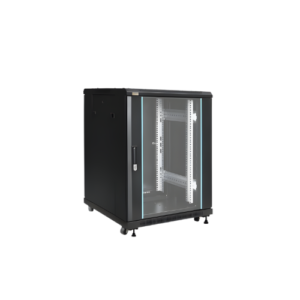
15U Server Rack
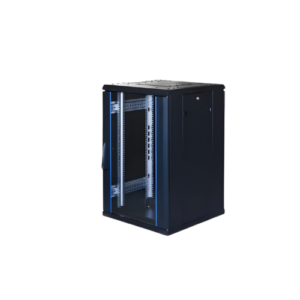
18U Server Rack
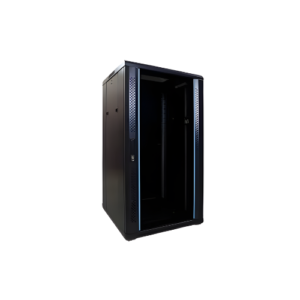
22U Server Rack